> For the complete documentation index, see [llms.txt](https://sensorbeeab.gitbook.io/sensorbeeab-docs/llms.txt). Markdown versions of documentation pages are available by appending `.md` to page URLs; this page is available as [Markdown](https://sensorbeeab.gitbook.io/sensorbeeab-docs/readme/sensorbee-cloud-services/device-management/devices.md).

# Devices

This page presents a list of devices registered to your account, which contains important device information like Installation ID, base unit serial, status, battery, signal strength and other parameters for monitoring. It also has information regarding the statistics count of online and offline units, which is useful for identifying which units are actively sending sensor values and which units have become inactive.

#### Functions <a href="#bd453c6236ab442e8bb747595abd93d9" id="bd453c6236ab442e8bb747595abd93d9"></a>

The following are the functionalities that you can do on this page:

* Pair New Device
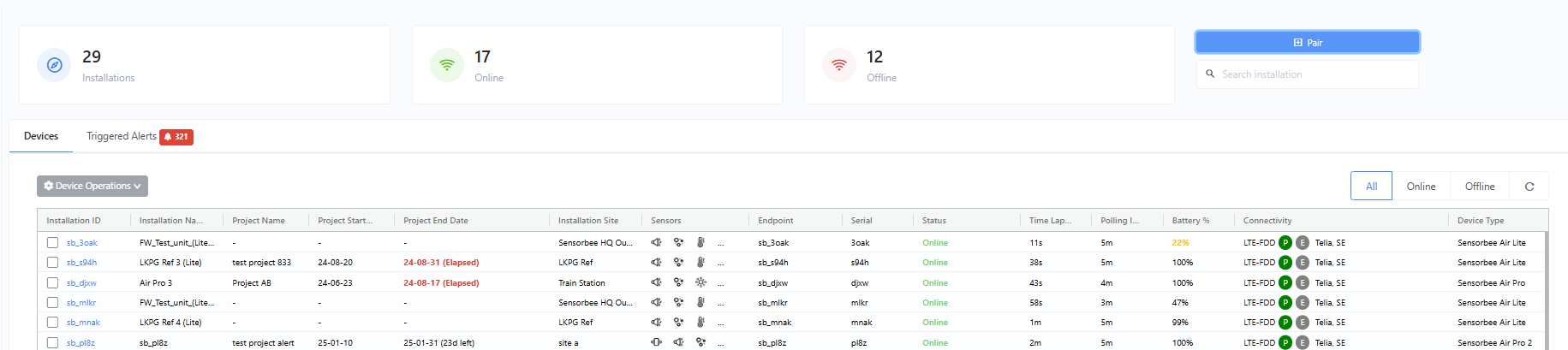
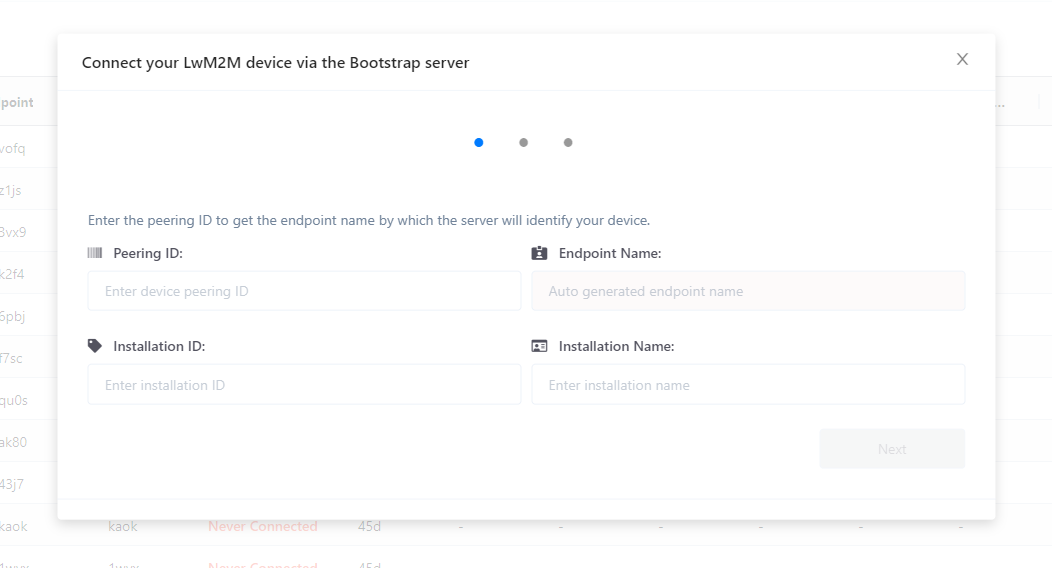
* You can find this button on the upper right corner of the screen that says “Pair”. When pressed, a modal will show up that will ask for parameters for the bootstrap process. Kindly refer to the [Sensorbee Air Pairing Process](https://docs.sensorbee.com/sensorbee-air-product-manual/sensorbee-air-pairing-process), for more bootstrapping details.

<figure><img src="https://image-forwarder.notaku.so/aHR0cHM6Ly93d3cubm90aW9uLnNvL2ltYWdlL2h0dHBzJTNBJTJGJTJGcHJvZC1maWxlcy1zZWN1cmUuczMudXMtd2VzdC0yLmFtYXpvbmF3cy5jb20lMkY4YTlhZWQwNi1mODQ0LTRkZTQtYjk2Yi1jMTUyNjkzMWM1NTclMkZlYzRlNjU4MS1hODQyLTQxZDYtYTY2YS1kZDJhZWNiMjQxZGElMkZpbWFnZS5wbmc_dGFibGU9YmxvY2smc3BhY2VJZD04YTlhZWQwNi1mODQ0LTRkZTQtYjk2Yi1jMTUyNjkzMWM1NTcmaWQ9MTc1ZDliODMtY2NhYy04MDIwLTg2MzgtZThkODAxY2U5ZjZjJmNhY2hlPXYyJndpZHRoPTEyMTguNjc1MDQ4ODI4MTI1" alt="Image without caption"><figcaption></figcaption></figure>

Figure 1 - Pair Button

<figure><img src="https://image-forwarder.notaku.so/aHR0cHM6Ly93d3cubm90aW9uLnNvL2ltYWdlL2h0dHBzJTNBJTJGJTJGczMtdXMtd2VzdC0yLmFtYXpvbmF3cy5jb20lMkZzZWN1cmUubm90aW9uLXN0YXRpYy5jb20lMkY2ODU2MGM4Ny1mZDIyLTQ2MzMtOWI2Zi1kYzBkNjNjN2UxMDQlMkZVbnRpdGxlZC5wbmc_dGFibGU9YmxvY2smc3BhY2VJZD04YTlhZWQwNi1mODQ0LTRkZTQtYjk2Yi1jMTUyNjkzMWM1NTcmaWQ9Yjk4MDgyNTMtZDJhNi00ZWMxLTgxNTQtNDFiNDQ2OTY1MGQ1JmNhY2hlPXYyJndpZHRoPTE0MTUuOTg0Mzc1" alt="Figure 2 - Bootstrap Modal"><figcaption><p>Figure 2 - Bootstrap Modal</p></figcaption></figure>

* Search box
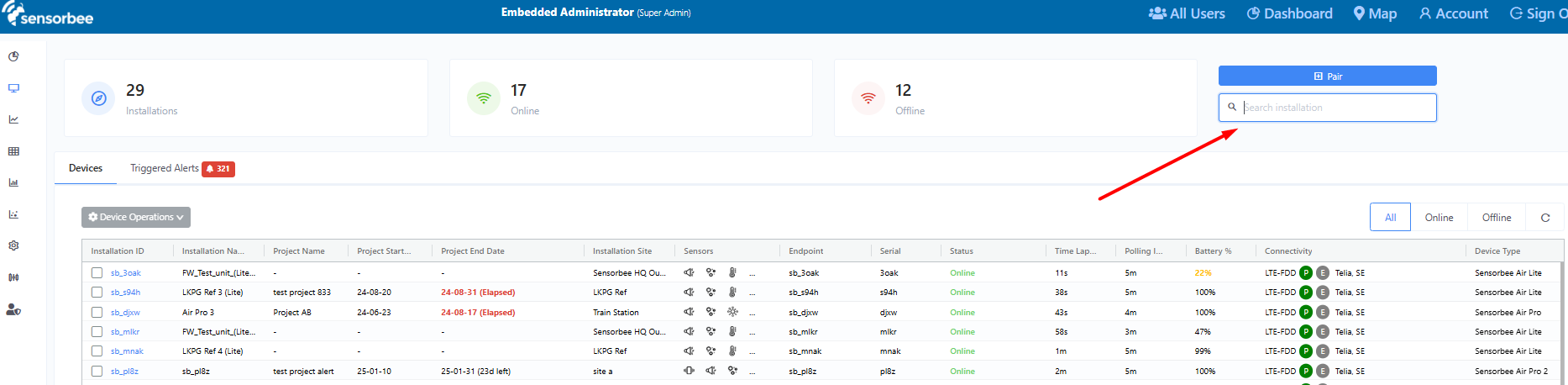
* You can use the search box, below the pair button, to locate a specific device by entering keywords that will be matched against the Installation ID, Installation Name, Endpoint and Serial.

<figure><img src="https://image-forwarder.notaku.so/aHR0cHM6Ly93d3cubm90aW9uLnNvL2ltYWdlL2h0dHBzJTNBJTJGJTJGcHJvZC1maWxlcy1zZWN1cmUuczMudXMtd2VzdC0yLmFtYXpvbmF3cy5jb20lMkY4YTlhZWQwNi1mODQ0LTRkZTQtYjk2Yi1jMTUyNjkzMWM1NTclMkZiODUzM2JjMS1lZTkwLTQ4YWItYWRhNi1hNDVjYzljNWIzNTklMkZpbWFnZS5wbmc_dGFibGU9YmxvY2smc3BhY2VJZD04YTlhZWQwNi1mODQ0LTRkZTQtYjk2Yi1jMTUyNjkzMWM1NTcmaWQ9MTc1ZDliODMtY2NhYy04MDU0LWEzZDMtZmFiMTIwODQ4YjgxJmNhY2hlPXYyJndpZHRoPTEyMTguNzI0OTc1NTg1OTM3NQ==" alt="Image without caption"><figcaption></figcaption></figure>

Figure 3 - Search Box (below pair button)

* Grid Filters
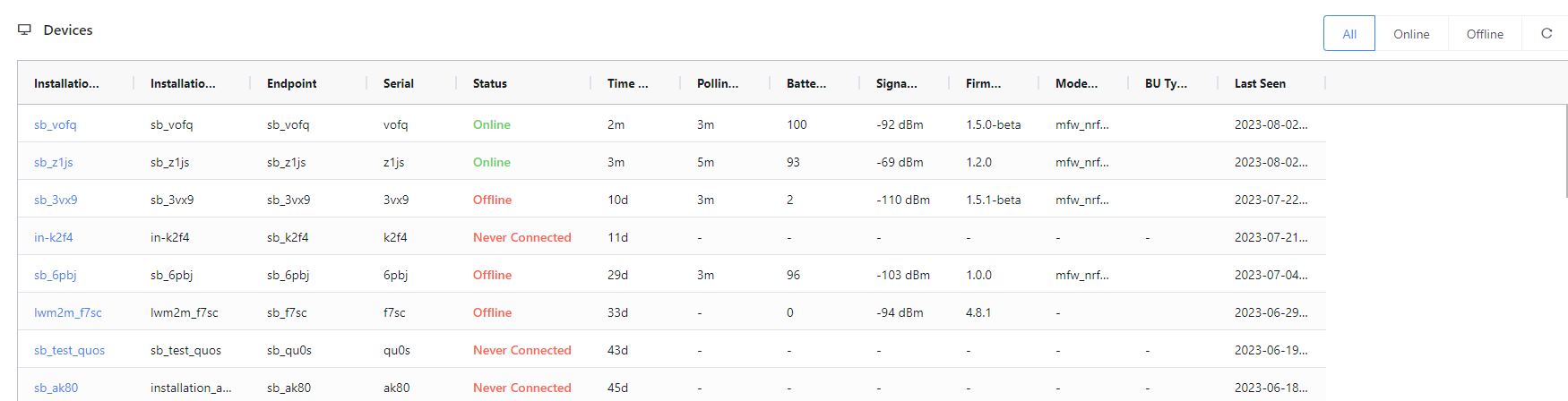
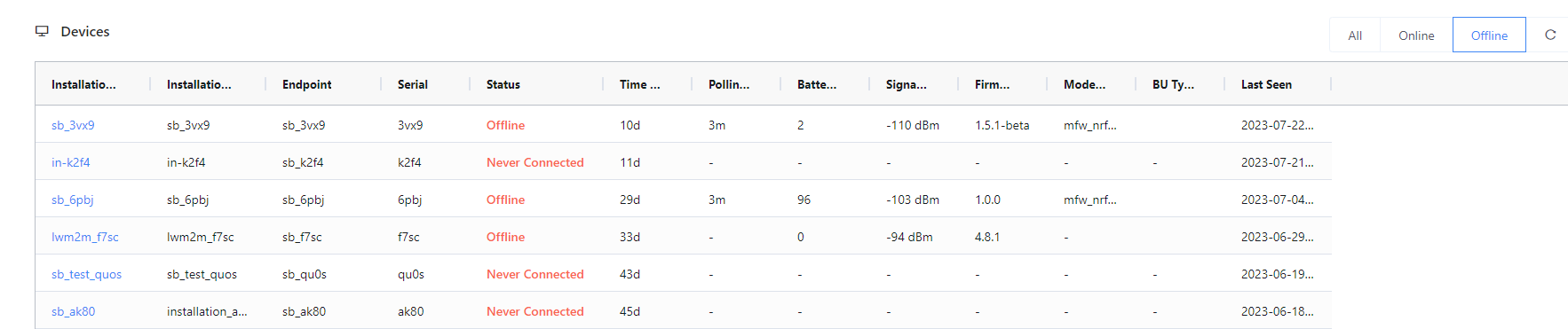
* The device list grid has available quick filters to show devices according to status (Online, Offline). You can find this on the upper right corner of the grid.
*

```
<figure><img src="https://image-forwarder.notaku.so/aHR0cHM6Ly93d3cubm90aW9uLnNvL2ltYWdlL2h0dHBzJTNBJTJGJTJGczMtdXMtd2VzdC0yLmFtYXpvbmF3cy5jb20lMkZzZWN1cmUubm90aW9uLXN0YXRpYy5jb20lMkZlMzg2YjdmMC0zOGEwLTRkMzYtYmRjYy0xYzYzNzkwYWM0ZWQlMkZVbnRpdGxlZC5wbmc_dGFibGU9YmxvY2smc3BhY2VJZD04YTlhZWQwNi1mODQ0LTRkZTQtYjk2Yi1jMTUyNjkzMWM1NTcmaWQ9ODRlYzgzMGYtZDMwNS00M2ZlLThmZDctMDIwNTgzMzQzMTRmJmNhY2hlPXYyJndpZHRoPTEzNTkuOTg0Mzc1" alt="Figure 4 - Quick Filter “All”"><figcaption><p>Figure 4 - Quick Filter “All”</p></figcaption></figure>
```

*

```
<figure><img src="https://image-forwarder.notaku.so/aHR0cHM6Ly93d3cubm90aW9uLnNvL2ltYWdlL2h0dHBzJTNBJTJGJTJGczMtdXMtd2VzdC0yLmFtYXpvbmF3cy5jb20lMkZzZWN1cmUubm90aW9uLXN0YXRpYy5jb20lMkYwZjM1YzNlOS04NTA1LTQ5MzctYWJjNy0xY2YzYzkzMDQ1OGElMkZVbnRpdGxlZC5wbmc_dGFibGU9YmxvY2smc3BhY2VJZD04YTlhZWQwNi1mODQ0LTRkZTQtYjk2Yi1jMTUyNjkzMWM1NTcmaWQ9MTVlNjViZGUtYjRmZi00MWE3LWI3NDgtY2U0MmNlYmY3OTg1JmNhY2hlPXYyJndpZHRoPTEzNTkuOTM3NQ==" alt="Figure 5 - Quick Filter “Online”"><figcaption><p>Figure 5 - Quick Filter “Online”</p></figcaption></figure>
```

*

```
<figure><img src="https://image-forwarder.notaku.so/aHR0cHM6Ly93d3cubm90aW9uLnNvL2ltYWdlL2h0dHBzJTNBJTJGJTJGczMtdXMtd2VzdC0yLmFtYXpvbmF3cy5jb20lMkZzZWN1cmUubm90aW9uLXN0YXRpYy5jb20lMkY4NzM4MDgxMy0zZmQ4LTQ4NDEtYjBmMS0wYzQ0ZGFjMGZkYjUlMkZVbnRpdGxlZC5wbmc_dGFibGU9YmxvY2smc3BhY2VJZD04YTlhZWQwNi1mODQ0LTRkZTQtYjk2Yi1jMTUyNjkzMWM1NTcmaWQ9ZjQwZWJkMzAtOGNhNy00NmVhLWJmZGMtZGYwZmFjZmM2NmY5JmNhY2hlPXYyJndpZHRoPTEzNTkuOTY4NzU=" alt="Figure 6 - Quick Filter “Offline”"><figcaption><p>Figure 6 - Quick Filter “Offline” </p></figcaption></figure>
```

```
* Device Status
* The following are the different device statuses that you will see from the list:
* Online
* The base unit is online and actively communicating with the server
* Offline
* The base unit is offline and not actively communicating with the server.
* Never Connected
* The base unit has never connected to the server yet. This is the first status that a newly paired / bootstrapped unit will have. This will be changed to “Online” when you turn on your base unit for the first time, after pairing.
```